P3: Interactive traffic light
Categories:
Interactive traffic light
What you will review in this project
In this project, we will combine what we have learned in the three previous lessons:
- Configuring a pushbutton and reading its state.
- Events and interrupts when pressing and releasing a button.
- Using a timer to execute a periodic task.
- Using variables to remember the current state.
Prerequisites
This project puts into practice the concepts learned in L7: The pushbutton, L8: The pushbutton (2) and L9: The timer.
The task
Build a traffic light using an RGB LED that changes colour automatically every two seconds:
- Red.
- Green.
- Yellow.
- Red again.
Add a pushbutton with this behaviour:
- Pressing it pauses the traffic light and keeps the current colour.
- Releasing it resumes the traffic light.
Before you start
The program will have two types of independent events:
- The timer event changes the colour.
- The button events disable or enable the timer.
The Step variable will remember which colour to display at the next timer event.
Hints
Only open these hints if you need them. Try it on your own first!
Show hints
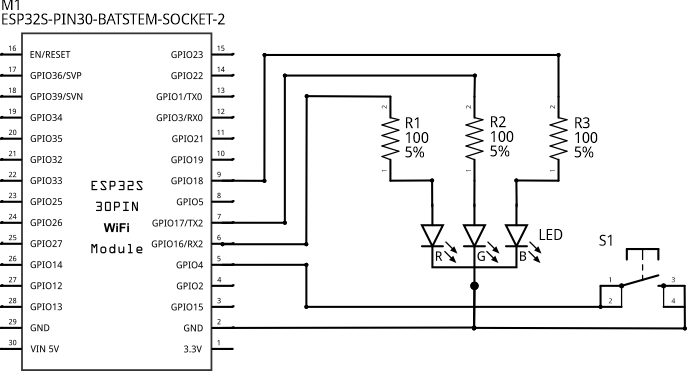
- Connect the RGB LED to GPIO16, GPIO17 and GPIO18.
- Connect the pushbutton to GPIO4 and GND.
- Create a Step variable with an initial value of 0.
- Create a timer called Pace that ticks every 2 seconds.
- Use the timer event to cycle through red, green and yellow.
- In the button’s ON event, set Pace to disabled.
- In the OFF event, enable it again.
Solution
Only look at the solution after you have tried to solve the project yourself. You can use different pins or time intervals if the final behaviour is the same.
Show solution
Materials
- ESP32 development board.
- BatSTEM expansion board.
- USB connection cable.
- Breadboard.
- Common-cathode RGB LED with 4 leads.
- Three 100 Ohm resistors.
- Pushbutton.
- Jumper wires.
Electronic schematic
Wiring
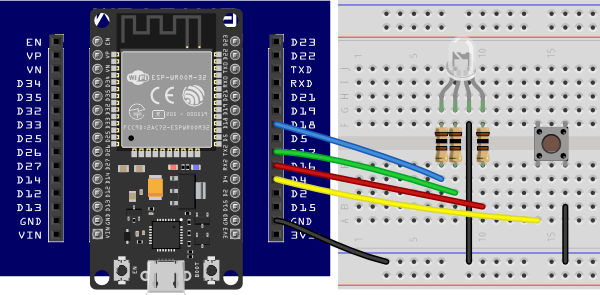
- Connect GND to the blue rail on the breadboard.
- Place the RGB LED with each lead in a different row.
- Connect its common lead to GND.
- Connect R to GPIO16, G to GPIO17 and B to GPIO18, with a 100 Ohm resistor for each channel.
- Place the pushbutton so that it straddles the central gap.
- Connect one pushbutton terminal to GPIO4 and the other to GND.
- Connect the board to the computer.
Program
In the setup block:
- Create an RGB LED called MyRGBLED and assign GPIO16 to R, GPIO17 to G and GPIO18 to B.
- Create a pushbutton called MyButton connected to GPIO4.
- Create the Step variable with an initial value of 0.
- Create the Pace timer, set its interval to 2 seconds and enable autostart.
Then create the three events shown in the image:
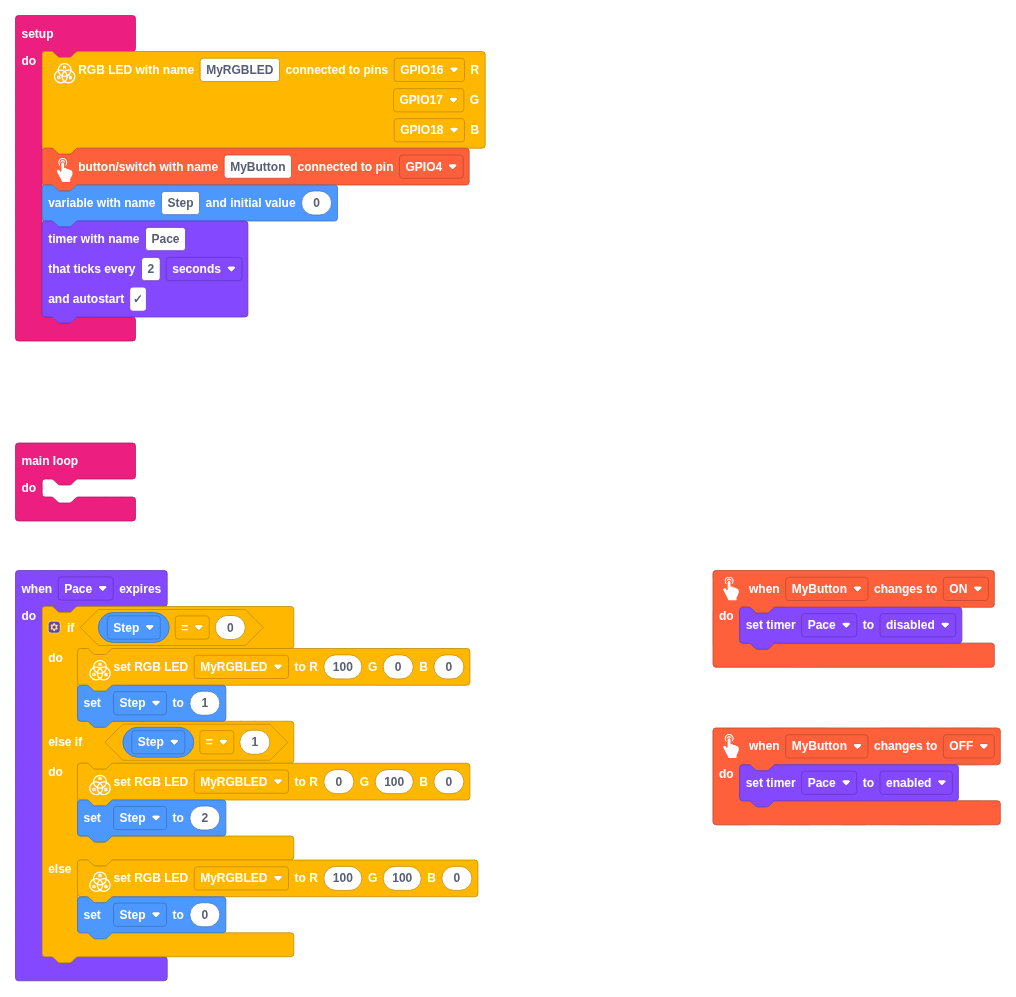
In “when Pace expires”:
- If Step equals 0, display red and set Step to 1.
- If Step equals 1, display green and set Step to 2.
- Otherwise, display yellow and set Step back to 0.
In “when MyButton changes to ON”, disable Pace.
In “when MyButton changes to OFF”, enable Pace.
Check that the colour stops changing while you hold the button down and that the sequence continues when you release it.
Optional challenges
- Change the traffic light’s timer interval to 1 or 5 seconds.
- Add a blue state to the sequence.
- Make the button toggle between paused and running with a single press.
- Add a second button to restart the sequence from red.
- Send the current colour to the COM monitor each time the timer triggers an event. Configure the COM port at 115200 bps: the COM monitor always uses this speed.
Project summary
- We have configured and used a pushbutton.
- We have reacted to press and release events.
- We have executed a sequence using a timer.
- We have used a variable to remember the traffic light’s state.
- We have coordinated independent events within the same program.