P2: Control the RGB LED from your computer
Categories:
Control the RGB LED from your computer
What you will review in this project
In this project, we will combine what we have learned in previous lessons:
- Controlling the red, green and blue channels of an RGB LED.
- Receiving and sending text through the COM port.
- Using a variable to store a message.
- Using conditions to decide what to do based on the command received.
Prerequisites
This project puts into practice the concepts learned in L4: Variable-brightness LED, L5: The RGB LED, L6: The serial port and L7: The pushbutton.
The task
Build a program that lets you control the RGB LED’s colour from your computer. You will be able to type these commands in the COM monitor:
| Command | What the board should do |
|---|---|
red | Turn the LED red. |
green | Turn the LED green. |
blue | Turn the LED blue. |
The LED will start off and keep the selected colour until another valid command arrives. Each time it changes colour, the board will send a confirmation, for example: Colour changed to red.
If it receives an unknown command, it will keep the current colour and reply: Unknown command. Use: red, green or blue.
Before you start
In L6, we made an echo program: the board sent back the text it received. Now that text will be a command that triggers a physical action.
Think about the steps a command goes through: you type red on the computer, the board stores the text in a variable, checks which word you sent, changes the LED and replies through COM.
Prepare a table with each command, the R, G and B values it needs, and the confirmation message. Also decide what should happen if you type a word such as hello.
Hints
Only open these hints if you need them. Try it on your own first!
Show hints
- Configure the COM port at 115200 bps: the COM monitor always uses this speed.
- Keep the wiring from L5: GPIO4 for red, GPIO16 for green and GPIO17 for blue.
- Create a variable called Message with an initial value of "" (empty text).
- Check whether data is available before reading. Read the text just once and store it in Message.
- Use the = comparison block from Logic to check whether Message equals the text
red,greenorblue. - Extend an if block with two else if branches and a final else branch for unknown commands.
- For each colour, set its channel to 100 and the other two to 0.
- Type commands in lowercase, without quotation marks or spaces at the start or end.
- You do not need any waits: if there is no new command, leave the LED as it is.
Solution
Only look at the solution after you have tried to solve the project yourself. Check that your program recognises all three commands and keeps the current colour when it does not receive a valid command.
Show solution
Materials
- ESP32 development board.
- BatSTEM expansion board.
- USB connection cable.
- Breadboard.
- Common-cathode RGB LED with 4 leads.
- Three 100 Ohm resistors.
- Jumper wires.
- Computer with access to BatSTEM Cloud.
Wiring
Use the same circuit as in L5: The RGB LED:
- Connect GND on the expansion board to the blue rail on the breadboard.
- Place the RGB LED with each lead in a different row.
- Connect the common lead to GND.
- Connect the red channel to GPIO4 through a 100 Ohm resistor.
- Connect the green channel to GPIO16 through another 100 Ohm resistor.
- Connect the blue channel to GPIO17 through another 100 Ohm resistor.
- Connect the board to the computer.
Program
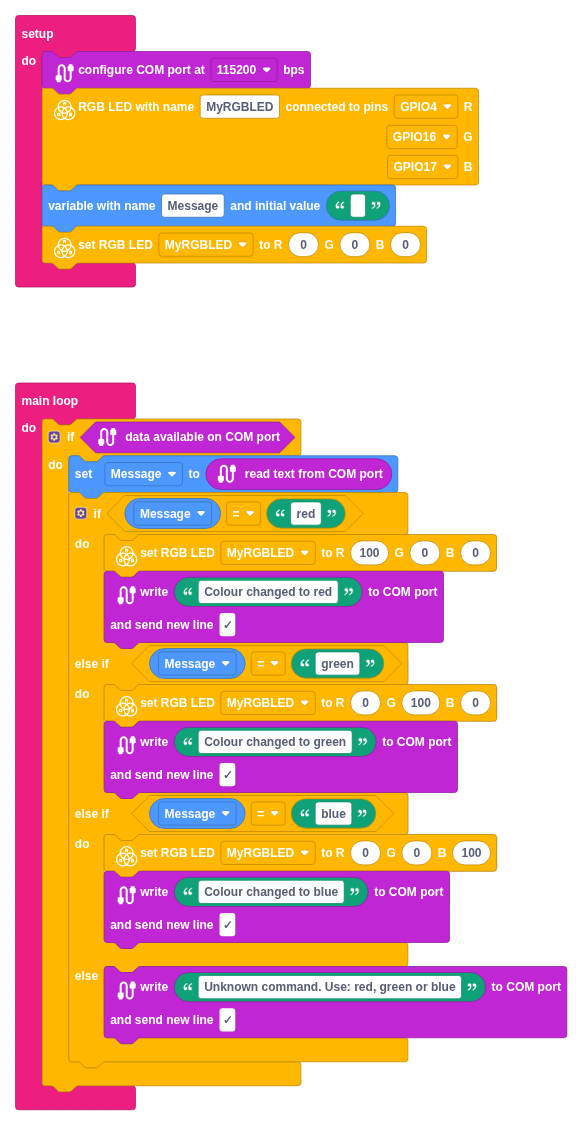
In the setup block:
- Configure the COM port at 115200 bps.
- Create an RGB LED called MyRGBLED and assign GPIO4 to R, GPIO16 to G and GPIO17 to B.
- Create the Message variable with an initial value of "".
- Set all three LED channels to 0 so that it starts off.
In the main loop:
- Add an if block with the condition data available on COM port.
- Inside it, set Message to the value of read text from COM port.
- Then add another if block. Use its gear icon to add two else if branches and an else branch.
- Compare Message with
red,greenandbluein the three conditions. In each branch, change all three LED channels and write the corresponding confirmation, with a new line. - In the final else branch, write
Unknown command. Use: red, green or blue. Do not change the LED in this branch.
| Condition | R | G | B | COM reply |
|---|---|---|---|---|
Message = red | 100 | 0 | 0 | Colour changed to red |
Message = green | 0 | 100 | 0 | Colour changed to green |
Message = blue | 0 | 0 | 100 | Colour changed to blue |
| Any other command | Unchanged | Unchanged | Unchanged | Unknown command. Use: red, green or blue |
The = comparison checks whether two values are equal; it does not change the variable. The set Message to… block stores a new value. The if / else if / else branches ensure that only the response matching the received command runs.
All message processing must stay inside if data available on COM port. This way, the board replies once per command and does not continually fill the monitor with the same message.
Check the result
- Run the sketch and open COM Mon.. The LED should start off.
- Type
redand send it: the LED should turn red andColour changed to redshould appear. - Wait a few seconds without sending anything: the colour should stay the same and no new replies should appear.
- Send
green, thenblue. Check the colour and confirmation each time. - Send
hello: the help message listing the valid commands should appear, and the LED should stay blue. - Send
redagain to check that the program still accepts commands after an unknown one.
The COM monitor automatically adds a newline when sending. The read block reads up to that newline and returns the text without it. Type only the word: red, green or blue. In this program, Red and red are different commands.
Optional challenges
- Add the command
offto set all three channels to 0. - Add
yellow,cyanandmagentaby mixing two channels, as in L5. - Add
soft redto set R to 20, G to 0 and B to 0. Compare its brightness with theredcommand. - Add a
helpcommand that shows the available commands without changing the colour. - Extend the confirmations to include the R, G and B values used.
Remember to update the message listing valid commands when you add new ones.
Project summary
- We have sent commands from the computer to control a physical component.
- We have stored the received text in a variable and compared it with several words.
- We have used conditions to select an RGB LED’s colour.
- We have confirmed actions and replied to unknown commands through the COM monitor.
- We have kept the LED’s state until a new valid command arrives.