L9: The timer
Categories:
The timer
What you will learn in this lesson
In this lesson, we will cover:
- What a timer is.
- The difference between waiting in the main loop and using a periodic event.
- Executing blocks at regular intervals.
- Enabling and disabling a timer.
- Using variables to remember the state between one timer event and the next.
Prerequisites
To follow this lesson, you should have completed Lesson 1: My first project, Lesson 3: The LED diode (2), Lesson 6: The serial port and Lesson 8: The pushbutton (2).
Theoretical explanation
In the first lessons, we used the wait block to create pauses. For example, we turned on an LED, waited one second, turned it off and waited another second.
This works well for simple programs. But sometimes we want something to happen at regular intervals without filling the main loop with waits. We can use a timer for this.
A timer is like an alarm that repeats. We give it a time interval, and each time that interval ends, it executes some blocks.
I want to know more!
Waiting and using a timer are different
When we use a wait block, the program pauses for that amount of time before moving on to the next block. It is like saying:
Do nothing for one second.
A timer, on the other hand, works as an event:
Every second, let me know and execute this part.
This is very similar to what we did with the pushbutton in the previous lesson. The pushbutton triggered an event when it changed to ON or OFF. The timer triggers an event when the scheduled time arrives.
A periodic event
We say that a timer is periodic because it repeats again and again. If we configure a timer with a one-second interval:
- One second passes → the timer triggers an event.
- Another second passes → it triggers another event.
- Another second passes → it triggers an event again.
As long as the timer is enabled, it will keep generating events.
Variables and state
A timer often needs a variable to remember what happened last time. For example, if we want an LED to blink:
- If the LED was off, we turn it on.
- If it was on, we turn it off.
To know what to do next, the program needs to remember the previous state. This information is stored in a variable.
As with pushbutton interrupts, keep the blocks inside a timer event clear and reasonably short. The timer sets the pace; avoid putting a huge program inside its event.
Practical part
You will need the following materials:
- ESP32 development board.
- BatSTEM expansion board.
- USB connection cable.
- Breadboard.
- Red LED.
- 100 Ohm resistor.
- Jumper wires.
- Pushbutton, for the second exercise.
Electronic schematic
We will use an external LED connected to GPIO4 with a 100 Ohm protective resistor.
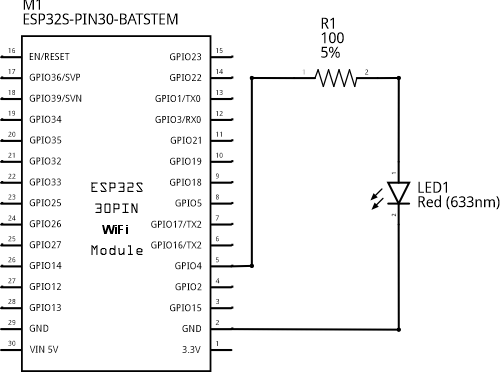
Wiring diagram
You can reuse the external LED circuit from Lessons 3 and 4.
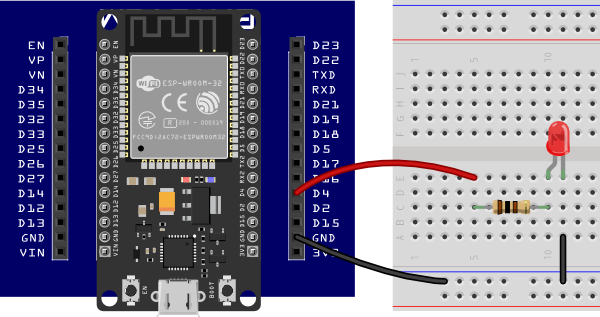 Connecting the components on the breadboard
Step by step
- Connect GND on the expansion board to the blue rail on the breadboard.
- Connect GPIO4 to an unused row on the breadboard.
- Place the 100 Ohm resistor in series with the LED.
- Connect the LED’s cathode to GND.
- Connect the board to the computer using the USB cable.
Code
Blinking an LED using a timer
Build and run the following sketch:
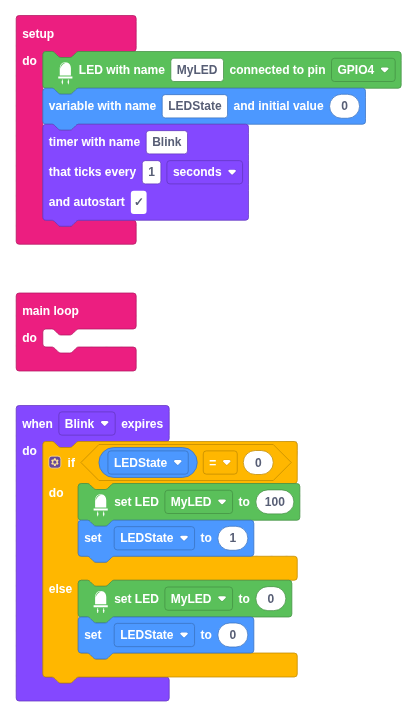
Step by step
- Add an “LED with name” block inside setup.
- Name it MyLED and select GPIO4.
- Create a variable called LEDState with an initial value of 0.
- Add a “timer with name” block.
- Name it Blink.
- Set it to tick every 1 second and enable autostart.
- Add a “when Blink expires” block.
- Inside the event, use an “if…do…else” block:
- If LEDState equals 0, set MyLED to 100 and LEDState to 1.
- Otherwise, set MyLED to 0 and LEDState to 0.
When you run the sketch, the LED will change state every second.
The main loop does not have to make the LED blink. The timer sets the pace.
Enabling and disabling a timer
We can also control whether a timer is enabled. In this example, pressing a pushbutton disables the timer, and releasing it enables the timer again.
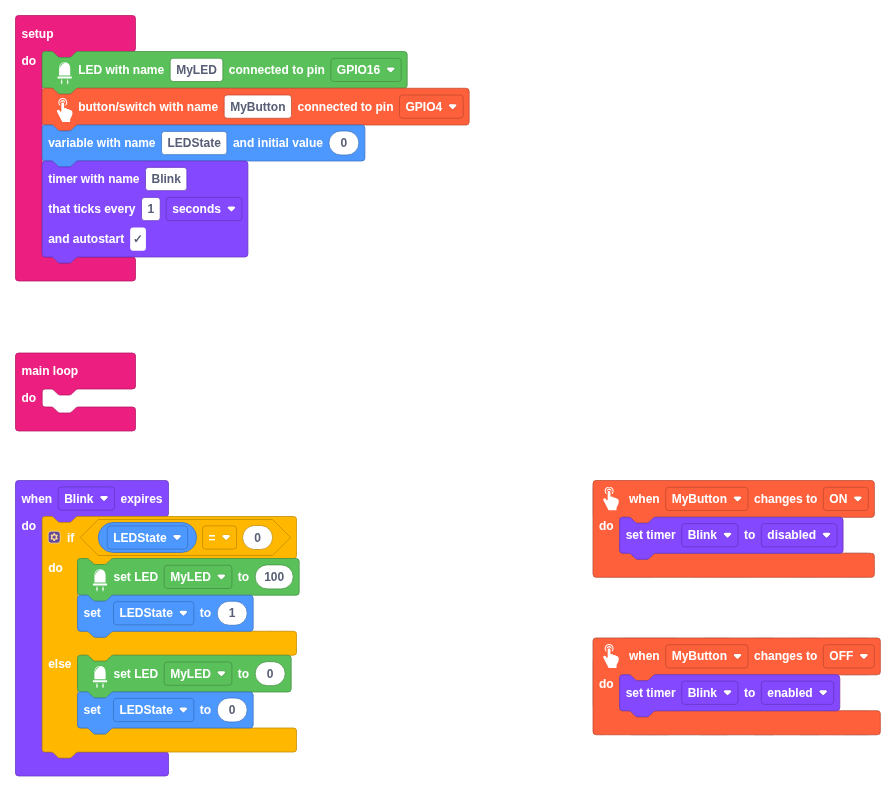
Step by step
- Keep the LED, the LEDState variable and the Blink timer from the previous exercise. To match the sketch in the image, move the LED’s connection to GPIO16 and select that pin in the MyLED configuration block.
- Add a “button/switch with name” block called MyButton, connected to GPIO4. Connect one pushbutton terminal to GPIO4 and the other to GND, as in Lesson 8.
- Add the “when MyButton changes to ON” event.
- Inside that event, use the “set timer Blink to disabled” block.
- Add the “when MyButton changes to OFF” event.
- Inside that event, use the “set timer Blink to enabled” block.
Pressing the button pauses the blinking. Releasing it resumes the blinking.
If you do this second exercise with an external LED, use different pins for the LED and the pushbutton. In the image, the LED uses GPIO16 and the pushbutton uses GPIO4.
I want to know more!
Why do we use a variable?
The timer triggers an event every second, but it does not know on its own whether the LED is on or off. The LEDState variable stores that information.
In this sketch, we use:
- 0 to mean off.
- 1 to mean on.
Each time the timer triggers an event, the program checks the variable, switches the LED to the opposite state and updates the variable for next time.
Timers and buttons
A timer and a button can work together:
- The timer sets the pace.
- The button decides whether that pace is active.
This combination appears in many projects: alarms, light signals, games, counters and automatic systems that can be paused.
Additional exercises or challenges
- Change the timer interval to 500 milliseconds to make the LED blink faster.
- Change the timer interval to 2 seconds to make the LED blink more slowly.
- Add the COM port and write LEDState each time the timer triggers an event.
- Use an RGB LED and alternate between red and blue at each timer event.
- Create two timers: one for each of two LEDs, with different intervals.
Hints for the challenges
- To use milliseconds, select milliseconds in the timer block.
- To write to the COM port, configure it at 115200 bps first. The COM monitor always uses this speed.
- To alternate colours, you can use a variable similar to LEDState.
- If you use two timers, give them different names to avoid confusion.
Summary of what we have learned
- We have learned what a timer is.
- We have used a timer to execute blocks at regular intervals.
- We have seen that a timer works as a periodic event.
- We have used a variable to remember the LED’s state.
- We have enabled and disabled a timer using a pushbutton.
- We have compared using wait blocks with using timers.
Next steps
- You can now combine inputs, outputs, variables, the COM port, interrupts and timers to build more complete projects.
- Put what you have learned into practice in P3: Interactive traffic light.
Solutions to additional exercises
Show
Sending LEDState to the COM monitor
To see the state in the COM monitor:
- Add “configure COM port at 115200 bps” inside setup.
- Inside “when Blink expires”, add “write LEDState to COM port” after changing the variable.
You can then check on the computer whether the program is alternating between 0 and 1.