L8: The pushbutton (2)
The pushbutton (2)
What you will learn in this lesson
In this lesson, we will cover:
- What an interrupt is.
- The difference between polling in the main loop and reacting to an event.
- Making a pushbutton execute blocks when its state changes.
- Using simple interrupts to control an LED.
- Optionally, using variables to count button presses.
Prerequisites
To follow this lesson, you should have completed Lesson 1: My first project, Lesson 2: The LED diode, Lesson 3: The LED diode (2) and Lesson 7: The pushbutton.
If you want to try the optional counter section, it will also help to have worked through Lesson 6: The serial port.
Theoretical explanation
In the previous lesson, we read the pushbutton’s state inside the main loop. The program repeated the same question many times:
- Is the button pressed?
- Is it pressed now?
- What about now?
This approach is called polling. It works well and is easy to understand, but it has a drawback: the program has to keep checking.
In this lesson, we will use a different idea: an interrupt. Instead of checking all the time, we will tell the board:
When the pushbutton changes to ON, execute these blocks.
I want to know more!
What is an interrupt?
An interrupt is a way of reacting to an event. An event is something that happens at a particular moment:
- Pressing a button.
- Releasing a button.
- Receiving a message.
- Reaching a specified time.
We can think of an interrupt as a doorbell. We do not check the door every second to see whether someone is there. When someone rings the bell, it lets us know.
Something similar happens with a pushbutton:
- With polling, the program repeatedly checks whether the button is pressed.
- With an interrupt, the program prepares a response for when the button’s state changes.
ON and OFF for a pushbutton
The high-level pushbutton block lets us work with simple values:
- ON: the pushbutton is pressed.
- OFF: the pushbutton is not pressed.
In this lesson, we will use two events:
- when MyButton changes to ON: happens when the pushbutton is pressed.
- when MyButton changes to OFF: happens when the pushbutton is released.
Programs that do two things
Interrupts are useful because they let us separate tasks. For example:
- The main loop can keep running a sequence of lights.
- The pushbutton can change a variable or turn on an LED when it is pressed.
This does not mean interrupts are always better. They are another tool. For simple programs, checking in the main loop may be enough. For quick events or actions at a particular moment, an interrupt can be more convenient.
Keep the actions inside an interrupt short and clear. Avoid long waits inside an interrupt. If an action takes a long time, it is usually better to change a variable and let the main loop do the work.
Practical part
You will need the following materials:
- ESP32 development board.
- BatSTEM expansion board.
- USB connection cable.
- Breadboard.
- Pushbutton.
- Red LED.
- 100 Ohm resistor.
- Jumper wires.
Electronic schematic
We will use the same circuit as in the previous lesson: a pushbutton connected to GPIO4 and an LED connected to GPIO2 with its protective resistor.
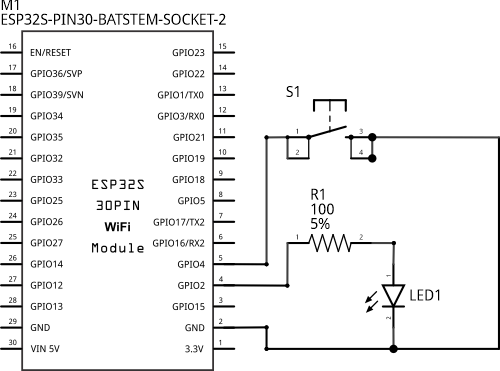
Wiring diagram
If you still have the circuit from Lesson 7 assembled, you can reuse it. Otherwise, connect the pushbutton and LED as shown in this diagram.
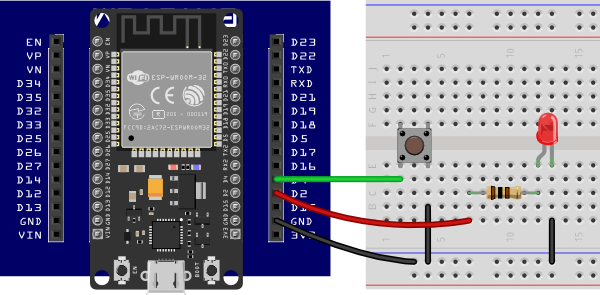 Connecting the components on the breadboard
Step by step
- Connect GND on the expansion board to the blue rail on the breadboard.
- Place the pushbutton so that it straddles the breadboard’s central gap.
- Connect one pushbutton terminal to GPIO4.
- Connect the other pushbutton terminal to GND.
- Connect the LED to GPIO2 using a 100 Ohm resistor in series.
- Connect the LED’s cathode to GND.
- Connect the board to the computer using the USB cable.
The high-level pushbutton block handles the configuration needed to read it correctly. In this exercise, we do not need to add an external resistor for the pushbutton.
Code
Turning on the LED using pushbutton events
Build and run the following sketch:
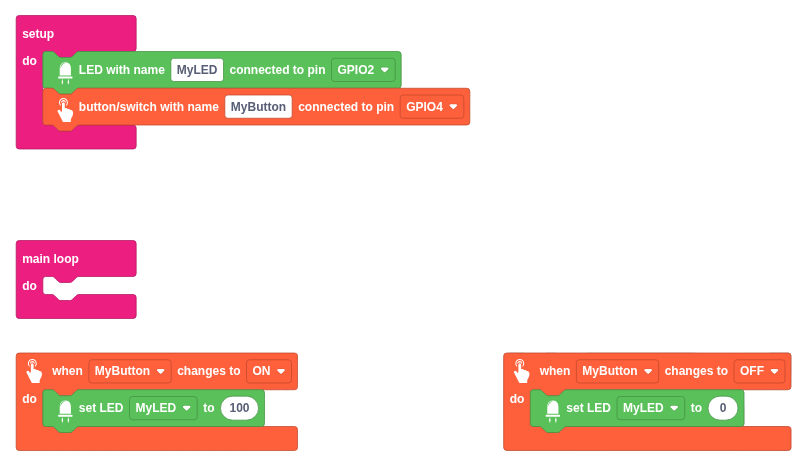
Step by step
- Add an “LED with name” block inside setup.
- Enter MyLED as the name and select GPIO2.
- Add a “button/switch with name” block.
- Enter MyButton as the name and select GPIO4.
- Drag in a “when MyButton changes to ON” block.
- Inside it, add “set LED MyLED to 100”.
- Drag in another block: “when MyButton changes to OFF”.
- Inside it, add “set LED MyLED to 0”.
- Run the sketch and try the pushbutton.
When you press the button, the ON interrupt runs. When you release it, the OFF interrupt runs.
Notice that the main loop does not need to check the button. The behaviour is defined in the event blocks.
Counting button presses
Now we will use a variable to remember how many times the button has been pressed. This section is a little more advanced because it combines interrupts, variables and the COM port.
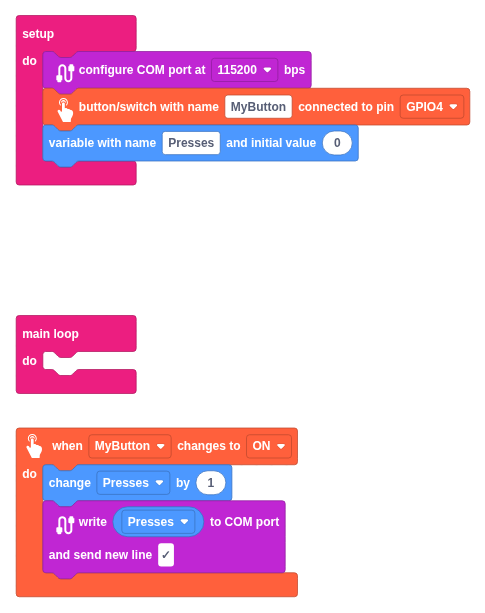
Step by step
- In setup, configure the COM port at 115200 bps. The COM monitor always uses this speed.
- Add the MyButton pushbutton connected to GPIO4.
- Create a variable called Presses with an initial value of 0.
- Add a “when MyButton changes to ON” block.
- Inside that event, add “change Presses by 1”.
- Then write Presses to the COM port.
- Run the sketch, open the COM monitor and press the button several times.
Each press should increase the number shown in the COM monitor.
I want to know more!
Why do we count only when the button changes to ON?
A pushbutton has two important state changes:
- From OFF to ON, when we press it.
- From ON to OFF, when we release it.
If we count both changes, a single press could increase the counter twice. That is why we use only the ON event to count presses.
Contact bounce and actual button presses
Mechanical pushbuttons can produce contact bounce. The high-level block makes working with the pushbutton easier, but if you ever see a single press counted more than once, it does not necessarily mean your whole program logic is wrong. It may be a physical effect of the button or a sign that you need to improve the debouncing.
Additional exercises or challenges
- Change the first sketch so that the LED turns on when you release the button and turns off when you press it.
- Add a second LED. Make one turn on with the ON event and the other with the OFF event.
- Modify the counter to write a message before the number, for example “Presses:”.
- Create a variable called State. When you press the button, set it to “active” and write it to the COM monitor.
Hints for the challenges
- To reverse the LED’s behaviour, swap the values 100 and 0.
- To use two LEDs, create two “LED with name” blocks in setup.
- To write fixed text to the COM monitor, use a text block inside “write … to COM port”.
- To work with text variables, create a variable and use the “set … to” block with a text block.
Summary of what we have learned
- We have learned that an interrupt lets us react to an event.
- We have compared polling and interrupts.
- We have used the “when MyButton changes to ON” block.
- We have used the “when MyButton changes to OFF” block.
- We have created a button-press counter using a variable.
- We have sent information to the COM monitor to observe what happens.
Next steps
- Learn to run periodic actions with a timer in Lesson 9.