L7: The pushbutton
The pushbutton
What you will learn in this lesson
In this lesson, we will cover:
- What a pushbutton is and how it works.
- The difference between input and output devices.
- Making decisions in our programs: the “if…do…else” block.
- Reading the state of a pushbutton from our program to control an LED.
Prerequisites
To follow this lesson, you should be familiar with the basic LED circuit covered in Lesson 1: My first project, Lesson 2: The LED diode and Lesson 3: The LED diode (2).
Theoretical explanation
I want to know more!
Inputs and outputs
In previous lessons, we learned to control LEDs, which receive information from our development board. When the program says “turn on the LED”, the board sends an output signal. The LED is therefore an output device: it receives commands from the program.
But what if we want our program to react to something happening in the real world? For example, turning on an LED when someone presses a button. For this, we need input devices: devices that send information to the development board so that the program can read it.
The pushbutton (or button) is one of the simplest input devices. We press it, and our program can detect that.
| Output | Input | |
|---|---|---|
| Direction | From the program to the outside world | From the outside world to the program |
| Examples | LED, motor, buzzer | Pushbutton, light sensor |
| Who decides? | The program | The user or the environment |
What is a pushbutton?
A pushbutton, or button, is a simple electronic component that acts as a momentary switch. When we press it, it closes the circuit and allows electric current to flow. When we release it, the circuit opens and the current stops flowing.
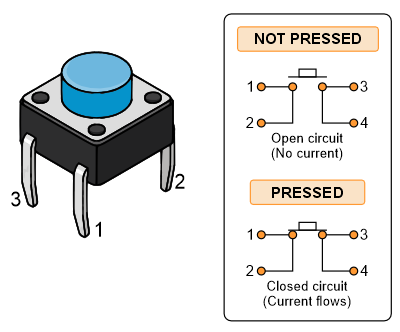
A pushbutton and how it works internally
Unlike a conventional switch, such as a room’s light switch, a pushbutton is only active while we hold it down. As soon as we release it, it returns to its original position.
The diagram shows that:
- Not pressed: the circuit is open (no current flows).
- Pressed: the circuit closes (current can flow).
Making decisions: the “if…do” block
Until now, our programs have executed a sequence of blocks one after another, always in the same way. But more interesting programs can make decisions and do different things depending on what is happening.
To make decisions, we use the logic block called “if”. This block works like this:
- if something is true -> do one thing
- else -> do something different
For example, think about how we decide whether to take an umbrella:
- If it is raining -> then I take my umbrella.
- If not -> then I leave my umbrella at home.
In our case:
- If the pushbutton is pressed -> then I turn on the LED.
- If not -> then I turn off the LED.
This kind of decision is called a conditional, and it is one of the most important concepts in programming. From now on, our programs can do much more!
The pull-up resistor
When we connect a pushbutton to a GPIO pin configured as an input, a problem arises: when the pushbutton is not pressed, the pin is left “floating” (connected to neither V+ nor GND). In this situation, the pin may read unpredictable values, sometimes ON and sometimes OFF, even though we have not touched anything.
To avoid this problem, we need to make sure the pin always has a known value. We can use a pull-up resistor: a resistor connected between the GPIO pin and the positive supply voltage (3V3). This means:
- When the pushbutton is not pressed: the pin reads a positive voltage through the resistor -> the value is ON.
- When the pushbutton is pressed: the pin connects directly to GND -> the value is OFF (GND “wins” because it is connected directly, without a resistor).
The ESP32 chip has internal pull-up resistors that can be enabled through software. When we use the high-level pushbutton block, this configuration happens automatically. When we use low-level blocks, we must explicitly select “input with pull-up”.
Practical part
You will need the following materials:
- ESP32 development board.
- USB connection cable.
- Breadboard.
- Pushbutton (button).
- Red LED.
- 100 Ohm resistor.
- Jumper wires.
Electronic schematic
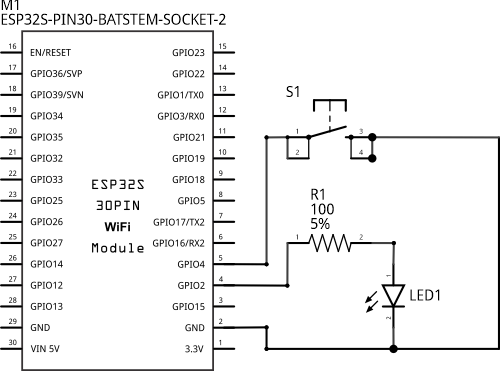
Wiring diagram
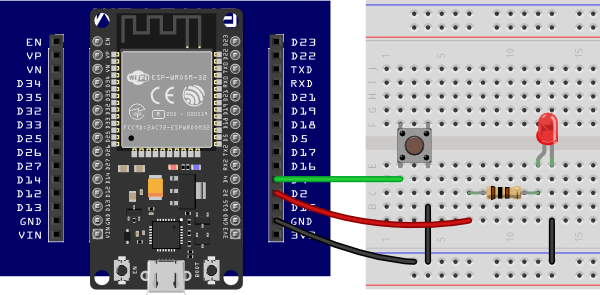
Connecting the components on the breadboard
Step by step
- Connect a black wire between the development board’s GND connector and the blue rail on the breadboard. The blue rail will be our 0-volt reference, or GND rail.
- Connect a red wire between the development board’s 3V3 connector and the red rail on the breadboard. The red rail will be our positive voltage (V+) rail.
- Place the pushbutton on the breadboard so that it straddles the central gap between the two main sections.
- Connect a wire from pin D4 (GPIO4) on the development board to one of the pushbutton’s terminals.
- Connect a black wire from the other pushbutton terminal to the blue GND rail.
- Connect a red wire from pin D2 (GPIO2) on the development board to an unused row in the breadboard’s central section.
- Place the 100 Ohm resistor so that one lead is in the same row as the wire from the previous step.
- Connect the red LED: place its anode in the same row as the resistor’s other lead, and its cathode in a different row.
- Connect a black wire between the LED’s cathode row and the blue GND rail.
- Connect the development board to the computer using the USB cable.
In this lesson, we will use the ESP32’s internal pull-up resistor for the pushbutton, so we will not need an additional external resistor for it. We only need the 100 Ohm resistor to protect the LED.
Code
I want to know more!
In this lesson, we will use logic blocks to make decisions in our program based on conditions evaluated while it runs.
The “if” block has two main parts:
- A condition: something that can be true or false. In our case, we will check whether the pushbutton is pressed.
- An action: what we want to happen if the condition is true.
We can also add an “else” section that runs when the condition is false. To add it, click the gear icon on the “if” block and drag an “else” block into the structure.
The "=" comparison block lets us check whether two values are equal. We will use it to compare the value read from the button with ON (pressed).
Turning on the LED when the button is pressed: high-level blocks
Following the approach you learned in previous lessons, build and run this sketch:
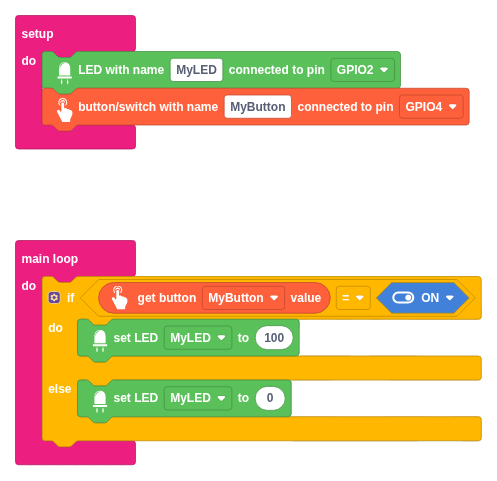
Step by step
Click Devices and drag an “LED with name” block into setup. Enter MyLED as the name and select GPIO2. To use the development board’s built-in LED, use GPIO2. If you prefer to use an external LED as in Lesson 3, select the pin you connected it to.
Click Devices again and drag a “button/switch with name” block into setup, below the previous block. Enter MyButton as the name and select GPIO4.
Now add the decision logic. Click Logic in the toolbox and drag an “if” block into the main loop.
To add the “else” section, click the gear icon on the “if” block and drag an “else” item into the structure that appears. Then close the window.
We need a condition for the “if” block. Click Logic and drag a comparison block (the one with the = symbol) into the condition slot of the “if” block.
For the left side of the comparison, click Devices and drag in a “get button … value” block. Make sure it shows MyButton.
For the right side of the comparison, click Devices and select an ON/OFF block. Set it to ON.
Inside the “do” section of the “if” block, add a “set LED” block with the name MyLED and a value of 100 (on at 100% brightness).
Inside the “else” section, add another “set LED” block with the name MyLED and a value of 0 (off).
Click Run and wait for the sketch to compile and transfer to the board. If everything has gone well, the LED will turn on while you hold the pushbutton down and turn off when you release it.
Notice the difference from previous lessons! Before, the LED always did the same thing: blink. Now you decide when it turns on and off by pressing the button.
Turning on the LED when the button is pressed: low-level blocks
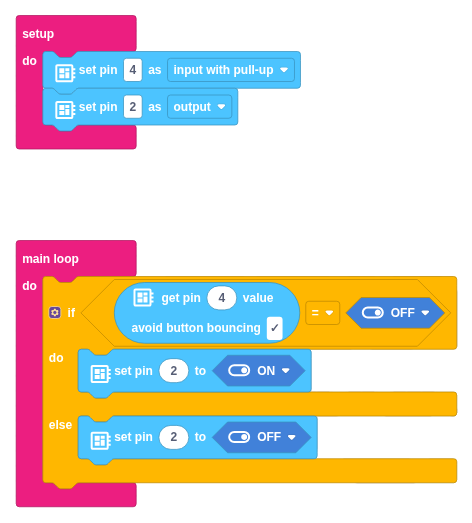
Build and run the following sketch:
Step by step
- Click Devices and drag a “set pin … as” block into setup. Select pin 4 and set its mode to input with pull-up. This configures GPIO4 as an input and enables its internal pull-up resistor.
- Drag in another “set pin … as” block. Select pin 2 and set its mode to output.
- Click Logic and drag an “if” block into the main loop. Add an “else” section as in the previous exercise.
- For the condition, use a comparison block with “get pin 4 value” on the left and OFF on the right. With an input configured with a pull-up, the pin reads OFF when the pushbutton is pressed.
- Inside “do”, add a “set pin 2 to ON” block.
- Inside “else”, add a “set pin 2 to OFF” block.
- Click Run and check that it works in the same way as the high-level blocks.
When using low-level blocks for the pushbutton input, select “input with pull-up” to avoid incorrect readings when the button is not pressed. The high-level blocks handle this configuration automatically.
Additional exercises or challenges
- Modify the sketch so that the LED blinks while you hold the button down instead of staying on continuously.
To do this, combine the “if” block with the wait blocks you already know from previous lessons. Inside the “do” section of the “if” block, add the sequence: on, wait, off, wait.
Connect a second LED of a different colour to another GPIO pin. Program the sketch so that, when the button is pressed, one LED turns on and the other turns off. When the button is not pressed, swap their states.
Connect two pushbuttons. Program the sketch so that each pushbutton controls a different LED independently.
Summary of what we have learned
- We have learned the difference between input devices (such as the pushbutton) and output devices (such as the LED).
- We have connected a pushbutton to the development board and learned to read its state from our program.
- We have used the “if…do…else” logic block to make decisions based on the pushbutton’s state.
- We have learned what a pull-up resistor is and why it is needed to read a pushbutton’s state correctly.
- We have used both high-level and low-level blocks to achieve the same result.
Next steps
- Learn to read a pushbutton’s state using interrupts in Lesson 8.
Solutions to additional exercises
Show
Blinking the LED while the button is pressed
To make the LED blink instead of staying on when we press the button, add the blinking sequence inside the “do” section of the “if” block.
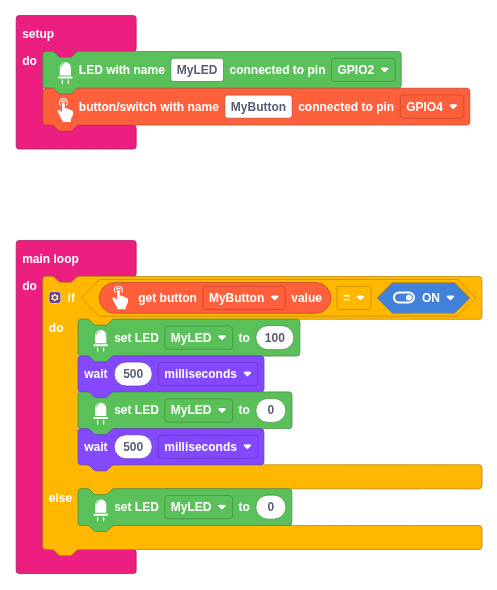
LED blinking while the button is pressed
When the button is pressed (ON), the program runs this sequence:
- Turn on the LED at 100% brightness.
- Wait 500 milliseconds.
- Turn off the LED (value 0).
- Wait 500 milliseconds.
When the button is not pressed, the LED stays off. The program checks the button again after completing the blinking sequence, so releasing it during a wait does not stop that sequence immediately.