L6: The serial port
The serial port
What you will learn in this lesson
In this lesson, we will cover:
- What a serial communication port is.
- How to use it to send information to the development board and receive information from it.
- How to use it to monitor and debug our programs.
- Using variables.
Prerequisites
To follow this lesson, you should have already completed Lesson 1: My first project, Lesson 2: The LED diode, Lesson 3: The LED diode (2), Lesson 4: Variable-brightness LED and Lesson 5: The RGB LED. In this lesson, we will not add a new electronic component: we will learn to communicate with the board from the computer.
Theoretical explanation
I want to know more!
What is the serial port?
The serial port provides a way for the development board and the computer to communicate. In our case, we will use the USB connection that we already use to program the board.
Until now, we have looked at an LED to see whether a program was working:
- If it blinked, the program seemed to be working.
- If its brightness changed, we knew that the brightness value was changing.
- If its colour changed, we knew that the RGB LED was receiving new commands.
But sometimes we want to see more specific information. For example:
- What number a variable holds.
- Which step of the program we have reached.
- Whether the board has received a message.
- What value a sensor has read.
This is what we use the COM monitor for.
The COM monitor
The COM monitor is a window in the BatSTEM Cloud environment that displays messages sent by the board. It also lets you type text on the computer for the board to receive.
We can think of it as a conversation:
- The board writes messages to the computer.
- The computer displays those messages.
- We can also write messages from the computer.
- The board can read those messages and respond.
Communication speed
Before sending messages through the serial port, the board and the computer must use the same communication speed. This speed is measured in bps (bits per second).
The BatSTEM Cloud COM monitor always operates at 115200 bps, so we must configure the program to use 115200 bps too.
If the speed configured in the program does not match the COM monitor’s fixed speed, messages may not display correctly. Always configure the program to use 115200 bps.
Variables
A variable is a named space where the program stores a value. That value can change while the program is running.
For example, we can create a variable called Counter with an initial value of 0. Then, each time the main loop repeats, we can increase its value:
- At the start: Counter = 0.
- After one loop: Counter = 1.
- After two loops: Counter = 2.
- After three loops: Counter = 3.
If we send the variable’s value to the COM monitor, we can see how it changes over time.
Practical part
You will need the following materials:
- ESP32 development board.
- BatSTEM expansion board.
- USB connection cable.
- Computer with access to BatSTEM Cloud.
Wiring diagram
In this lesson, we only need to connect the development board to the computer using the USB cable. This connection will let us program the board and communicate with it through the COM monitor.
Step by step
- Place the ESP32 development board on the BatSTEM expansion board.
- Connect the USB cable to the development board.
- Connect the other end of the USB cable to the computer.
- Open BatSTEM Cloud.
- When you run a sketch, open the COM Mon. panel to see the messages sent by the board.
If the COM monitor does not show any messages, check that the board is connected, that the sketch has run correctly and that the program is configured to use 115200 bps.
Code
We will create three sketches. First, we will send a simple message. Then, we will use a counter variable. Finally, we will make the board respond when it receives text from the computer.
Sending a message to the COM monitor
Build and run the following sketch:
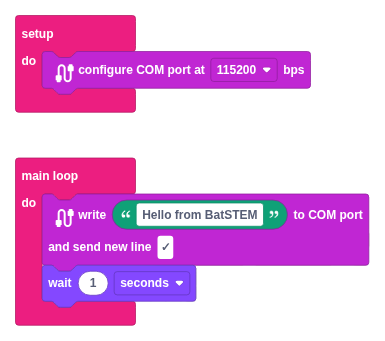
- In the setup block, add the “configure COM port” block.
- Select a speed of 115200 bps.
- In the main loop, add a “write … to COM port” block.
- Enter the text “Hello from BatSTEM”.
- Keep the option to send a new line enabled.
- Add a wait of 1 second.
- Run the sketch and open the COM monitor.
Step by step
- Click the Communication category.
- Drag the “configure COM port at 115200 bps” block into setup.
- Drag a “write … to COM port” block into the main loop.
- Add a text block containing the message “Hello from BatSTEM”.
- Leave send new line checked so that each message appears on a new line.
- Click Time and add a wait of 1 second.
- Click Run.
- Open the COM monitor and watch the message appear once per second.
The new line makes each message start on a separate line. If you disable it, the messages will appear one after another on the same line.
Sending the value of a variable
Now we will use a variable to count how many times the main loop has repeated.
Build and run this sketch:
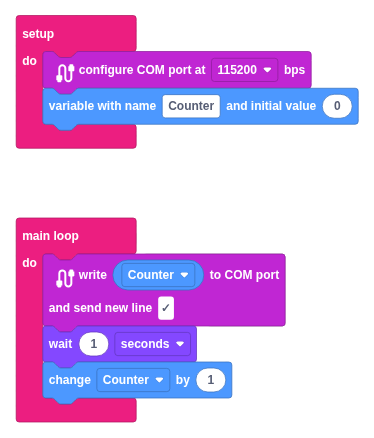
- In setup, configure the COM port at 115200 bps.
- In setup, create a variable with name Counter and an initial value of 0.
- In the main loop, write the value of Counter to the COM port.
- Add a wait of 1 second.
- Change Counter by 1.
Step by step
- Keep the “configure COM port at 115200 bps” block inside setup.
- Click the Data category.
- Drag the “variable with name” block into setup.
- Enter Counter as the variable’s name.
- Set its initial value to 0.
- In the main loop, add a “write … to COM port” block.
- Instead of entering fixed text, insert the block that reads the Counter variable.
- Add a wait of 1 second.
- Add the “change Counter by 1” block.
- Run the sketch and watch the number increase in the COM monitor.
If the counter starts by showing 0, that is not an error. It is the initial value we chose. It will then increase gradually.
Reading text from the COM monitor
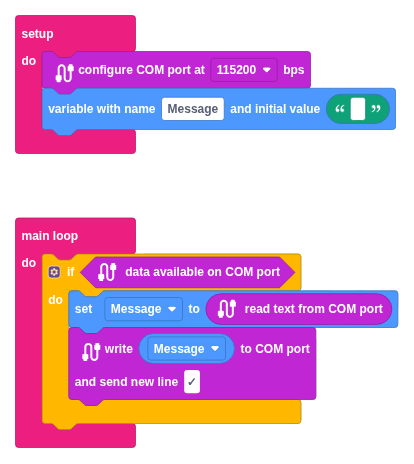
We can also send text from the computer to the board. In this sketch, the board will check whether data is available. If there is text, it will read it and write it back to the COM monitor.
Step by step
- Configure the COM port at 115200 bps in the setup block.
- Create a variable called Message with an initial value of "".
- In the main loop, add an “if” block from the Logic category.
- Use the “data available on COM port” block as the condition.
- Inside the “if” block, set the Message variable to the value of the “read text from COM port” block.
- Then add a “write … to COM port” block and write the Message variable.
- Run the sketch.
- Type a word in the COM monitor and send it. The board should respond by displaying the same text.
This kind of program is sometimes called an “echo”: it sends back whatever it receives. It is a simple way to check that communication works in both directions.
Additional exercises or challenges
Replace the message “Hello from BatSTEM” with some other text.
Modify the counter so that it increases by 2 each time.
To do this, replace the “change Counter by 1” block with “change Counter by 2”.
Make the counter value appear faster or slower by changing the waiting time.
In the echo sketch, change the response so that the board always writes a message before sending back the text it received.
Summary of what we have learned
- We have learned that the serial port lets the board communicate with the computer.
- We have configured the COM port at 115200 bps.
- We have sent messages from the board to the COM monitor.
- We have used a variable to store a counter.
- We have read text sent from the COM monitor to the board.
- We have used the COM port as a tool to monitor and debug our programs.
Next steps
- Learn to use a pushbutton as an input device in Lesson 7.
Solutions to additional exercises
Show
Counting in steps of 2
To make the counter increase in steps of 2, keep the same structure as the counter sketch, but change the increment:
- Write Counter to the COM port.
- Wait 1 second.
- Change Counter by 2.
The output will look something like this:
- 0
- 2
- 4
- 6
- 8
Responding with the received text
In the echo sketch, we can add a fixed message before writing the Message variable. For example:
- Write “I received:” to the COM port.
- Write the Message variable to the COM port.
This makes it easier to identify the board’s responses in the COM monitor.