L5: The RGB LED
Categories:
The RGB LED
What you will learn in this lesson
In this lesson, we will cover:
- What an RGB LED is and how it works.
- Additive colour mixing.
- Controlling the LED’s colour and brightness from the development board.
Prerequisites
To follow this lesson, you should have already completed Lesson 1: My first project, Lesson 2: The LED diode, Lesson 3: The LED diode (2) and Lesson 4: Variable-brightness LED. In this lesson, we will use three outputs on the board to control the three colours of a single component.
Theoretical explanation
I want to know more!
What is an RGB LED?
An RGB LED is a component that can produce different colours by combining three basic lights:
- R stands for red.
- G stands for green.
- B stands for blue.
Although it looks like a single LED on the outside, it contains three small LEDs: one red, one green and one blue. Each is called a colour channel. By controlling the brightness of each channel, we can create many different colours.
The four leads of an RGB LED
A typical RGB LED has 4 leads:
- One lead for the red channel.
- One lead for the green channel.
- One lead for the blue channel.
- One common lead, shared by all three channels.
The common lead can work in two ways, depending on the type of RGB LED:
- Common cathode: the common lead connects to GND.
- Common anode: the common lead connects to the positive voltage.
In this lesson, we will use a common-cathode RGB LED. If the LED in your kit or classroom is a common-anode type, the wiring and the way the values behave may differ. Your teacher will tell you which type you are using.
If a channel does not light up when it should, that does not necessarily mean the program is wrong. With an RGB LED, it is very important to correctly identify the common lead and the lead for each colour.
Additive colour mixing
When we mix coloured lights, their colours add together. This is called additive colour mixing. It uses three primary colours: red, green and blue (RGB). These are the colours of the three LEDs inside our RGB LED. As we add light, the result gets lighter, and when we mix all three colours, we get white light.
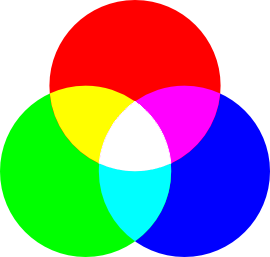
Additive colour mixing (light)
This does not work in the same way as mixing paints. With paint, mixing many colours usually produces a dark colour. This kind of colour mixing is called subtractive colour mixing, and its primary colours are cyan, magenta and yellow—the colours used by printers, for example.
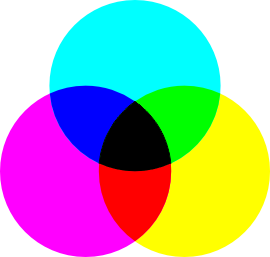
Subtractive colour mixing (pigments)
Some important combinations are:
| Red | Green | Blue | Approximate colour |
|---|---|---|---|
| ON | OFF | OFF | Red |
| OFF | ON | OFF | Green |
| OFF | OFF | ON | Blue |
| ON | ON | OFF | Yellow |
| ON | OFF | ON | Magenta |
| OFF | ON | ON | Cyan |
| ON | ON | ON | White |
| OFF | OFF | OFF | Off |
In practice, the final colour depends on the RGB LED, the brightness of each channel and the room lighting. It is fine if the colour does not look exactly like the one in the table. What matters is observing how it changes when you combine the channels.
Brightness in each channel
In the previous lesson, we learned that an LED can receive intermediate values, such as 20, 50 or 80. With an RGB LED, we can do the same for each channel.
For example:
- Red 100, green 0, blue 0 -> bright red.
- Red 50, green 0, blue 0 -> dimmer red.
- Red 100, green 50, blue 0 -> orange or warm yellow.
- Red 20, green 20, blue 100 -> blue with some white light.
You can think of each colour as a recipe. Instead of ingredients such as flour or water, we use amounts of red, green and blue.
Practical part
You will need the following materials:
- ESP32 development board.
- BatSTEM expansion board.
- USB connection cable.
- Breadboard.
- RGB LED with 4 leads.
- Three 100 Ohm resistors.
- Jumper wires.
Electronic schematic and wiring diagram
We will connect a common-cathode RGB LED. Each colour channel will connect to a different GPIO pin through its own protective resistor. The RGB LED’s common lead will connect to GND.
We will use these connections:
| Channel | GPIO pin |
|---|---|
| Red | GPIO4 |
| Green | GPIO16 |
| Blue | GPIO17 |
| Common | GND |
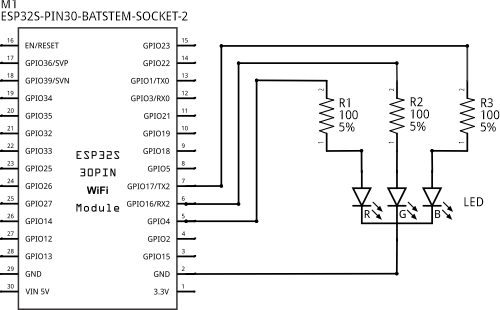
Electronic schematic
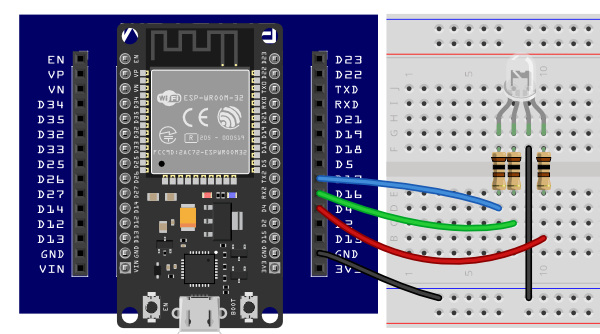
Connecting the components on the breadboard
Step by step
- Place the ESP32 development board on the BatSTEM expansion board.
- Connect a black wire between the GND connector on the expansion board and the blue rail on the breadboard.
- Place the RGB LED on the breadboard so that its leads are not all in the same electrically connected row.
- Identify the RGB LED’s common lead. On many RGB LEDs, it is the longest lead, but check the component’s diagram to be sure.
- Connect the common lead to the blue GND rail.
- Connect the red channel to GPIO4, with a 100 Ohm resistor in series.
- Connect the green channel to GPIO16, with a 100 Ohm resistor in series.
- Connect the blue channel to GPIO17, with a 100 Ohm resistor in series.
- Check that each channel has its own resistor.
- Connect the development board to the computer using the USB cable.
Do not connect the red, green and blue channels directly to the board without resistors. Each RGB LED channel behaves like an independent LED and needs its own protective resistor.
Code
We will control the RGB LED using the blocks designed for this component. First, we will define it with the “RGB LED with name” block, then change its colour with the “set RGB LED” blocks.
I want to know more!
Although the RGB LED is a single component, the setup block needs to know which pins its three channels—R, G and B—are connected to. We can then control it as a single named device.
If you are using a common-anode RGB LED, the values may behave in reverse: a low value may make a channel brighter, while a high value may turn it off. In this lesson, we will follow the common-cathode example to keep the main activity straightforward.
Lighting up the basic colours
Build and run a sketch that shows this sequence:
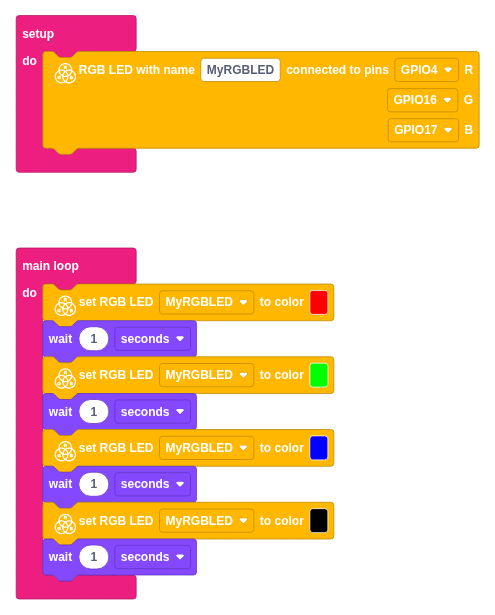
- Red for 1 second.
- Green for 1 second.
- Blue for 1 second.
- Off for 1 second.
Step by step
- Click Devices and drag an “RGB LED with name” block into the setup block.
- Enter MyRGBLED as the name.
- Select GPIO4 for the R channel.
- Select GPIO16 for the G channel.
- Select GPIO17 for the B channel.
- Drag a “set RGB LED” block into the main loop.
- Select MyRGBLED and choose red in the colour picker.
- Add a wait of 1 second.
- Add another “set RGB LED” block with green and another wait of 1 second.
- Add another “set RGB LED” block with blue and another wait of 1 second.
- Finally, add a “set RGB LED” block with black and a wait of 1 second. Black means that all three channels are off.
- Run the sketch and watch the RGB LED change colour.
The colour picker is the easiest way to get started. Internally, the block converts the selected colour into values for the red, green and blue channels.
Mixing colours
Now modify the sketch to show mixed colours too. You can use the colour picker or the block that lets you enter the R, G and B values separately.
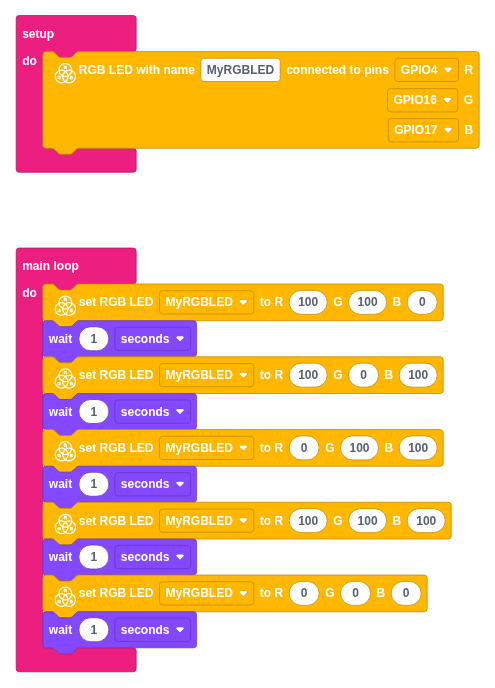
| Colour we want to see | Red | Green | Blue |
|---|---|---|---|
| Yellow | 100 | 100 | 0 |
| Magenta | 100 | 0 | 100 |
| Cyan | 0 | 100 | 100 |
| White | 100 | 100 | 100 |
Step by step
- Keep the “RGB LED with name” block in setup.
- In the main loop, add a sequence for yellow. If you use the block with R/G/B values, enter R 100, G 100, B 0.
- Add a wait of 1 second.
- Add a sequence for magenta: R 100, G 0, B 100.
- Add a wait of 1 second.
- Add a sequence for cyan: R 0, G 100, B 100.
- Add a wait of 1 second.
- Add a sequence for white: R 100, G 100, B 100.
- Add a wait of 1 second.
- Finish by setting R 0, G 0, B 0 for 1 second.
If everything is working correctly, you will see a continuously repeating sequence of colours.
Creating softer colours
Finally, try intermediate values. For example:
| Red | Green | Blue | Expected result |
|---|---|---|---|
| 100 | 40 | 0 | Orange |
| 20 | 0 | 100 | Purplish blue |
| 100 | 20 | 60 | Pink |
| 20 | 100 | 20 | Soft green |
The colours do not all need to turn out perfectly. The aim is to see that changing each channel’s brightness changes the result.
Additional exercises or challenges
- Create a sequence showing these colours: red, yellow, green, cyan, blue, magenta and white.
Use the mixing table in the theoretical explanation to help you.
Invent a colour by adjusting the red, green and blue values. Give it a name.
Make red gradually turn into green.
One simple way is to decrease red in steps while increasing green: red 100/green 0, red 80/green 20, red 60/green 40…
- If you have two RGB LEDs, connect the second to three other GPIO pins, create another “RGB LED with name” block and design a sequence where one shows warm colours and the other shows cool colours.
Summary of what we have learned
- We have learned that an RGB LED combines three colour channels: red, green and blue.
- We have connected a four-lead RGB LED using one resistor for each channel.
- We have seen that light mixes through additive colour mixing.
- We have created basic and mixed colours by turning on several channels at once.
- We have used intermediate values to adjust the brightness of each colour.
Next steps
- Learn to communicate between the board and the computer using the serial port in Lesson 6.
Solutions to additional exercises
Show
A seven-colour sequence
One possible sequence is:
| Colour | Red | Green | Blue |
|---|---|---|---|
| Red | 100 | 0 | 0 |
| Yellow | 100 | 100 | 0 |
| Green | 0 | 100 | 0 |
| Cyan | 0 | 100 | 100 |
| Blue | 0 | 0 | 100 |
| Magenta | 100 | 0 | 100 |
| White | 100 | 100 | 100 |
We can add a wait of 1 second after each colour.
Turning red into green
To move gradually from red to green, we can use this table:
| Step | Red | Green | Blue |
|---|---|---|---|
| 1 | 100 | 0 | 0 |
| 2 | 80 | 20 | 0 |
| 3 | 60 | 40 | 0 |
| 4 | 40 | 60 | 0 |
| 5 | 20 | 80 | 0 |
| 6 | 0 | 100 | 0 |
Add a short wait between steps so you can see the change.
Two RGB LEDs
If you have two RGB LEDs, you can repeat the same circuit using three other GPIO pins. For example:
- First RGB LED: GPIO4, GPIO16 and GPIO17.
- Second RGB LED: three other available GPIO pins.
To create contrast, the first LED can show red, yellow and orange, while the second shows blue, cyan and green.