L4: Variable-brightness LED
Categories:
Variable-brightness LED
What you will learn in this lesson
In this lesson, we will cover:
- Controlling the brightness of an external LED from the development board.
- PWM outputs: what they are and what they are used for.
Prerequisites
To follow this lesson, you should have already completed Lesson 1: My first project, Lesson 2: The LED diode and Lesson 3: The LED diode (2). In this lesson, we will use the same type of circuit as in the previous lesson, but we will learn to control the LED using more values than just on and off.
Theoretical explanation
I want to know more!
On, off… and the levels in between
In previous lessons, we used the LED in a very simple way:
- Value 100: the LED turns on.
- Value 0: the LED turns off.
But in many projects, we want to do more than just switch a light on or off. Sometimes we want it to glow dimly, shine brightly or change gradually. For example:
- An ambient light.
- An indicator that gets brighter.
- A light alarm that turns on gently.
- A “breathing” effect, where the light gets brighter and dimmer.
To do this, we need to control the LED’s brightness.
Can a digital pin produce intermediate values?
A digital pin on the board has two main states:
- ON: connected to the positive voltage.
- OFF: connected to GND.
This seems like a problem: if we only have ON and OFF, how can we make an LED appear to be on at 25%, 50% or 75%?
The solution is to turn the LED on and off very quickly. So quickly that our eyes do not see individual flashes, but a light that looks brighter or dimmer.
PWM outputs
PWM stands for Pulse Width Modulation.
Although the name sounds complicated, the basic idea is simple:
- If the LED is on almost all the time, it will look very bright.
- If the LED is on for only a small part of the time, it will look dim.
- If the LED is on for half the time and off for the other half, it will appear to have an intermediate brightness.
For example, over a very short period of time:
| Value sent to the LED | Time on | Approximate result |
|---|---|---|
| 0 | 0% | Off |
| 25 | 25% | Dim |
| 50 | 50% | Medium brightness |
| 100 | 100% | Maximum brightness |
The percentage of time that the signal stays on is called the duty cycle.
You do not need to remember the technical name to complete this lesson. What matters is understanding the idea: with PWM, the LED turns on and off very quickly, allowing us to control how bright it looks.
Why can’t we see the flashing?
Our eyes cannot detect every change when things happen very quickly. Something similar happens in films and videos: we see continuous movement, even though many still images are actually being shown one after another.
PWM works in a similar way. The LED switches between ON and OFF many times per second. Because this happens so quickly, our eyes interpret the result as a brighter or dimmer light.
Practical part
You will need the following materials:
- ESP32 development board.
- BatSTEM expansion board.
- USB connection cable.
- Breadboard.
- Red LED.
- 100 Ohm resistor.
- Jumper wires.
Electronic schematic and wiring diagram
In this lesson, we will reuse the circuit from Lesson 3: The LED diode (2). The external LED will be connected to a GPIO pin on the development board through a protective resistor.
We will use GPIO4, just as in the previous lesson.
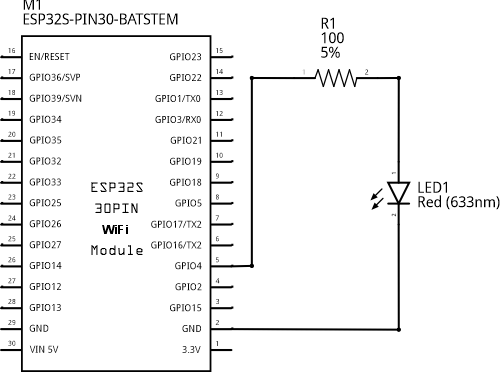
Electronic schematic
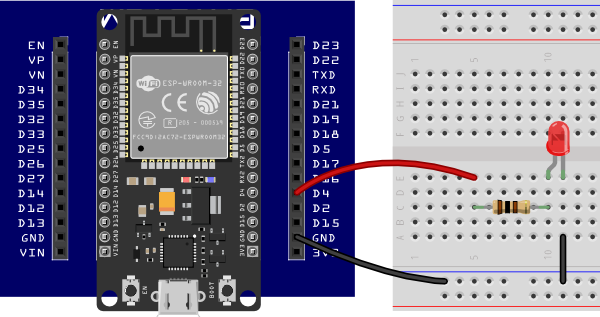
Connecting the components on the breadboard
Step by step
- Place the ESP32 development board on the BatSTEM expansion board.
- Connect a black wire between the GND connector on the expansion board and the blue rail on the breadboard. This will be our 0-volt reference, or GND rail.
- Connect a wire from D4 (GPIO4) on the expansion board to an unused row in the centre of the breadboard.
- Place a 100 Ohm resistor so that one of its leads is in the same row as the wire connected to GPIO4.
- Connect the red LED: its anode should be in the same row as the resistor’s other lead, and its cathode should be in a different row.
- Connect a black wire between the LED’s cathode row and the blue GND rail.
- Connect the development board to the computer using the USB cable.
Remember that the LED has polarity. If it does not light up during the activity, check that the anode and cathode are the right way round and that the resistor is in series with the LED.
Code
In this lesson, we will create two sketches. In the first, we will try different brightness levels. In the second, we will make the LED gradually get brighter and dimmer.
I want to know more!
When we use the high-level LED block, the value does not have to be just 0 or 100. We can also use intermediate values. BatSTEM Cloud generates the PWM signal needed to make the LED look brighter or dimmer.
This lets us focus on the idea behind the program without manually configuring every detail of the PWM signal.
There is also a low-level option in the GPIO category: the “set pin … to analog … %” block. This block lets you send a percentage directly to a GPIO pin. In this lesson, we will start with the “LED with name” block because it is clearer and avoids having to remember the pin number at every step.
Trying different brightness levels
Build and run the following sketch:
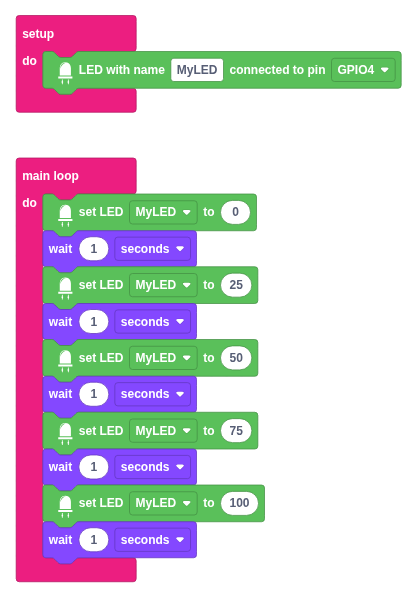
- In the setup block, create a named LED connected to GPIO4. You can call it MyLED.
- In the main loop, set the LED to 0.
- Add a wait of 1 second.
- Set the LED to 25.
- Add a wait of 1 second.
- Set the LED to 50.
- Add a wait of 1 second.
- Set the LED to 75.
- Add a wait of 1 second.
- Set the LED to 100.
- Add a wait of 1 second.
Step by step
- Click Devices and drag an “LED with name” block into the setup block.
- Enter MyLED as the LED’s name.
- Select GPIO4, the pin to which we connected the external LED.
- Drag a “set LED” block into the main loop and select MyLED.
- Enter 0 in the “set LED” block.
- Click Time and add a wait block set to 1 second.
- Duplicate the pair of “set LED” and “wait” blocks until you have five levels.
- Change the LED values to 0, 25, 50, 75 and 100.
- Press Run and wait for the sketch to compile and transfer to the board.
- Watch the LED’s brightness change step by step.
If you find some levels hard to distinguish, try looking at the LED from the side or dimming the room lights a little. Brightness differences are easier to see on some LEDs than on others.
Creating a gentle lighting effect
Now we will make the LED get brighter and dimmer. Build a new sketch with this sequence:
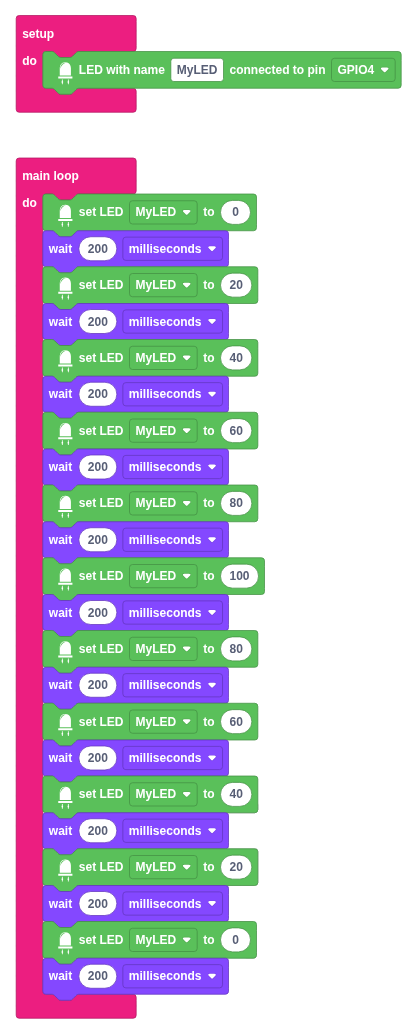
- Set the LED to 0.
- Wait 200 milliseconds.
- Set the LED to 20.
- Wait 200 milliseconds.
- Set the LED to 40.
- Wait 200 milliseconds.
- Set the LED to 60.
- Wait 200 milliseconds.
- Set the LED to 80.
- Wait 200 milliseconds.
- Set the LED to 100.
- Wait 200 milliseconds.
- Repeat the same sequence downwards: 80, 60, 40, 20, 0.
Step by step
- Keep the “LED with name” block in setup, connected to GPIO4.
- In the main loop, alternate “set LED” blocks and wait blocks.
- Start with increasing values: 0, 20, 40, 60, 80, 100.
- Then add decreasing values: 80, 60, 40, 20, 0.
- Add a wait of 200 milliseconds after each change in brightness.
- Run the sketch.
When the sequence ends, the main loop will start again from the beginning, so the effect will repeat continuously.
This type of effect is called a fade. In real projects, it is used to make lights change gently rather than abruptly.
The same idea with GPIO blocks
I want to know more!
High-level blocks let us work with an LED using a name. But we can also control the pin directly using blocks from the GPIO category.
To try this, you can build an equivalent sketch using the “set pin … to analog … %” block:
- In the main loop, add a “set pin … to analog … %” block.
- Enter 4 as the pin number.
- Enter the value 0.
- Add a wait.
- Repeat the same idea with the values 25, 50, 75 and 100.
The result will be similar to the “set LED” block, but you will now be controlling the GPIO pin directly. This approach is more flexible, although it also requires more care with the pin number.
Additional exercises or challenges
- Change the waiting times to make the effect faster or slower.
If you increase the waiting time, the change will be slower. If you reduce it, the change will be faster.
- Change the intermediate values to give the LED more brightness steps.
Try steps of 10: 0, 10, 20, 30… up to 100. The effect will be smoother, but you will need more blocks.
Create a light signal that does the following: gradually gets brighter, stays at maximum brightness for 2 seconds, then turns off abruptly.
Connect a second LED to another GPIO pin and create an effect where one gets brighter while the other gets dimmer.
Summary of what we have learned
- We have learned that an LED does not have to be just on or off.
- We have used intermediate values to control an external LED’s brightness.
- We have seen that PWM simulates different brightness levels by turning the LED on and off very quickly.
- We have created a fade effect where the light gets brighter and dimmer.
- We have reused the previous lesson’s circuit to learn a new way to control the LED.
Next steps
- Learn to control several colours with an RGB LED in Lesson 5.
Solutions to additional exercises
Show
A smoother effect with steps of 10
To create a smoother change in brightness, we can use more intermediate values. For example:
- 0
- 10
- 20
- 30
- 40
- 50
- 60
- 70
- 80
- 90
- 100
Then we repeat the same sequence in reverse. The program will be longer, but the change from one level to the next will be less abrupt.
A light signal that turns on gradually
To solve the third challenge, we can use this idea:
- Increase the brightness using several intermediate values.
- When the LED reaches 100, add a wait of 2 seconds.
- Then set the LED directly to 0.
- Add another wait before repeating the sequence.
Two LEDs changing in opposite directions
To make one LED get brighter while the other gets dimmer, we need to create two named LEDs in the setup block. For example:
- LED_A on GPIO4.
- LED_B on another available GPIO pin.
Then, at each step of the main loop, we use opposite values:
| LED_A | LED_B |
|---|---|
| 0 | 100 |
| 20 | 80 |
| 40 | 60 |
| 60 | 40 |
| 80 | 20 |
| 100 | 0 |